How M0VE works.
Log your food, connect your devices, use the recovery window, track your sweat rate. A practical walkthrough of the parts of M0VE that matter most — written for athletes, not for spec sheets.


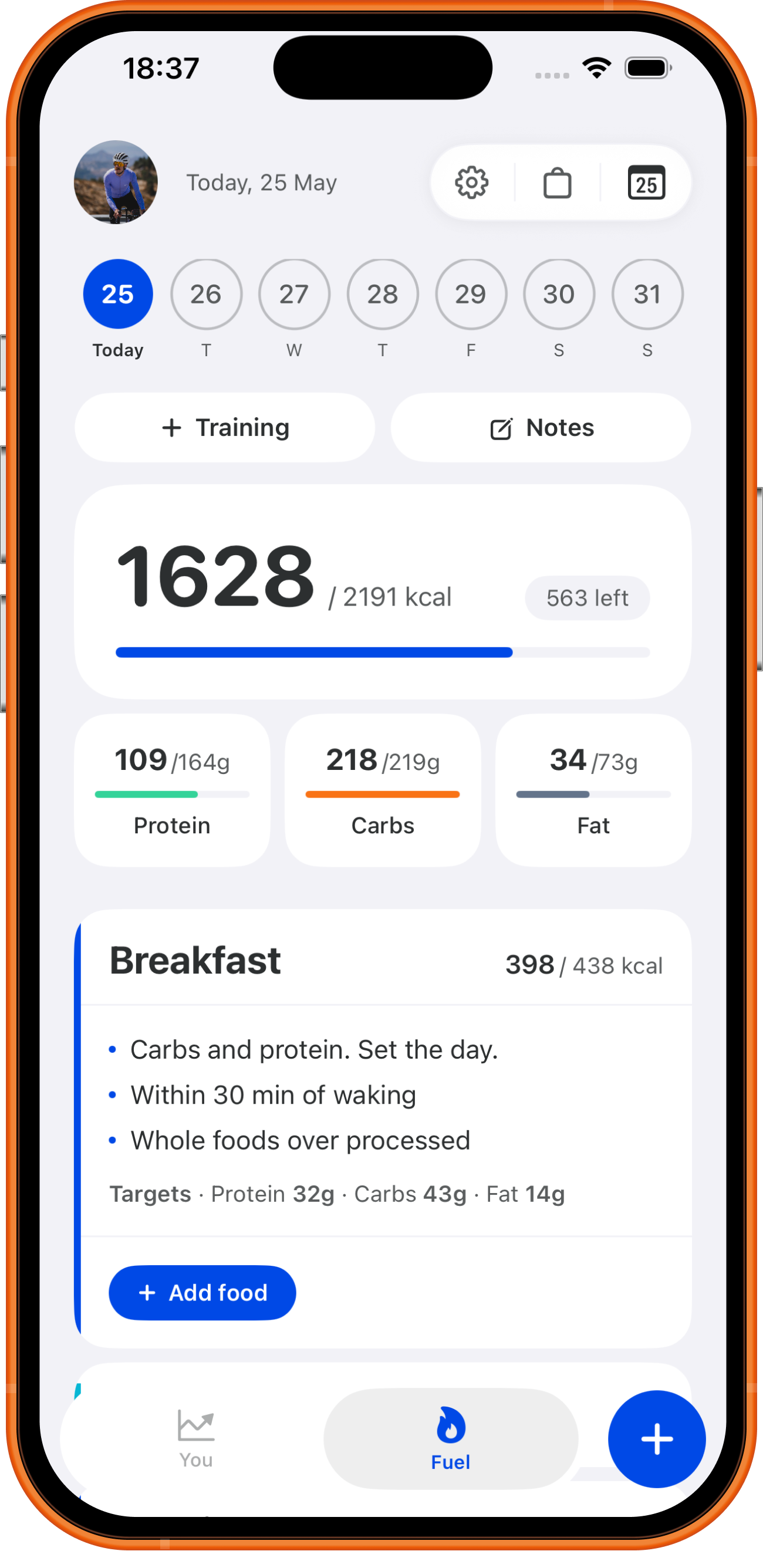
M0VE tracks your nutrition around your training, not just a fixed daily target. Your calories, macros, and meal targets adjust every day based on what's on your plan.
Skim what you need.
How do I log my food?
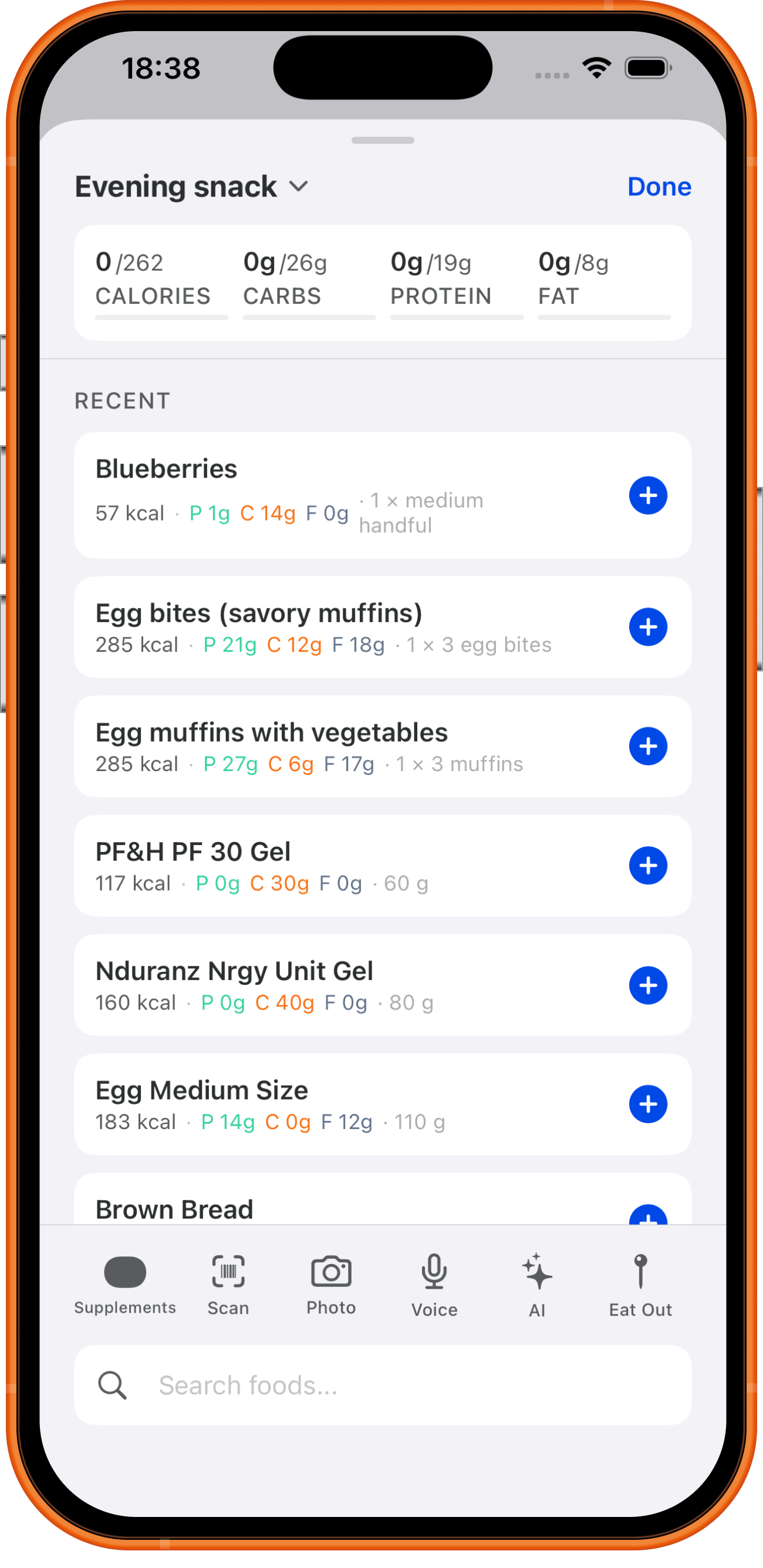
Open any meal slot on your dashboard and choose how you want to add food. There are four ways to log:
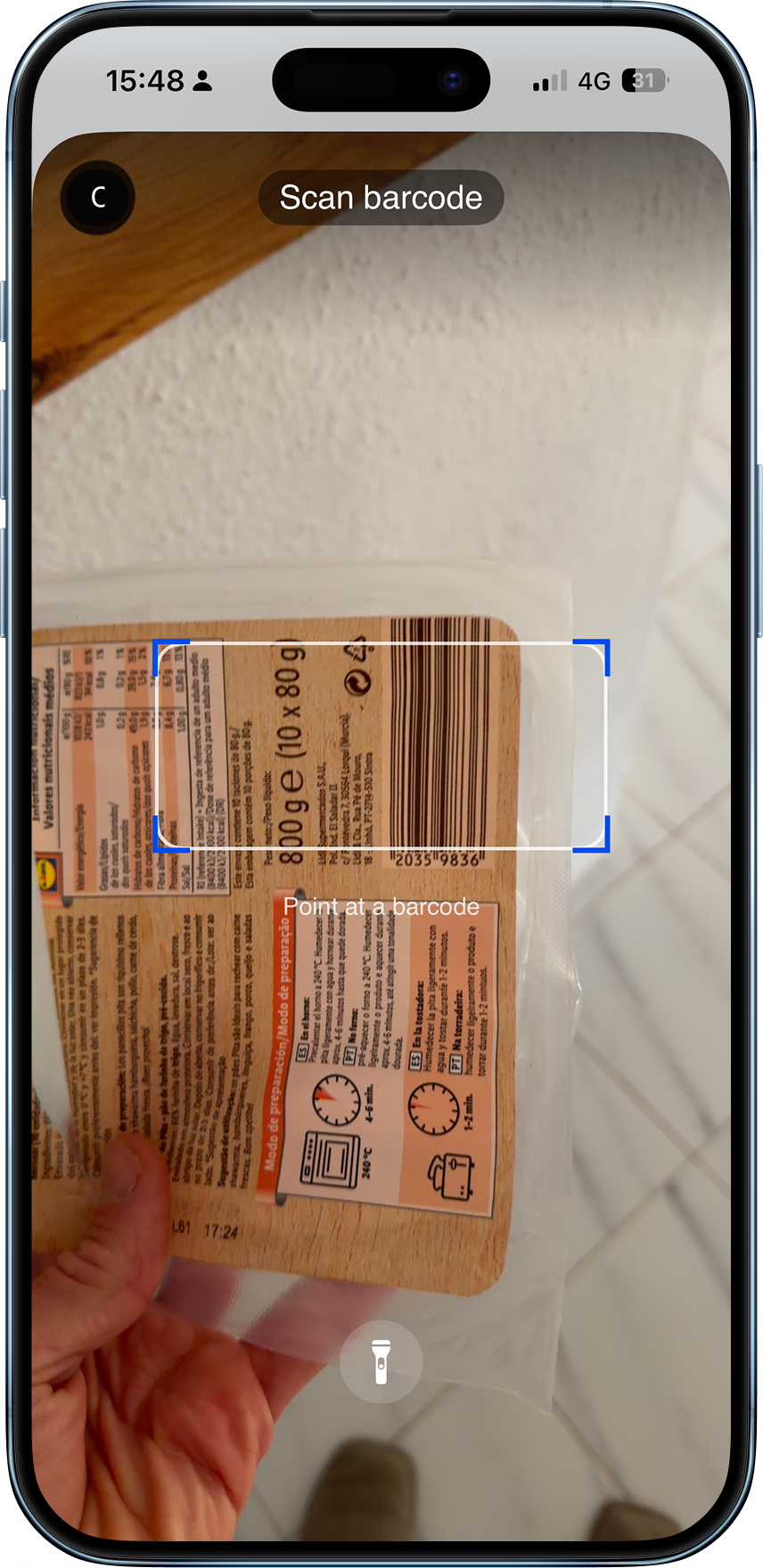
- Barcode scanner: point your camera at any packaged food and M0VE pulls the nutrition data automatically.
- Food search: search by name across a full food database. Adjust the serving size before logging.
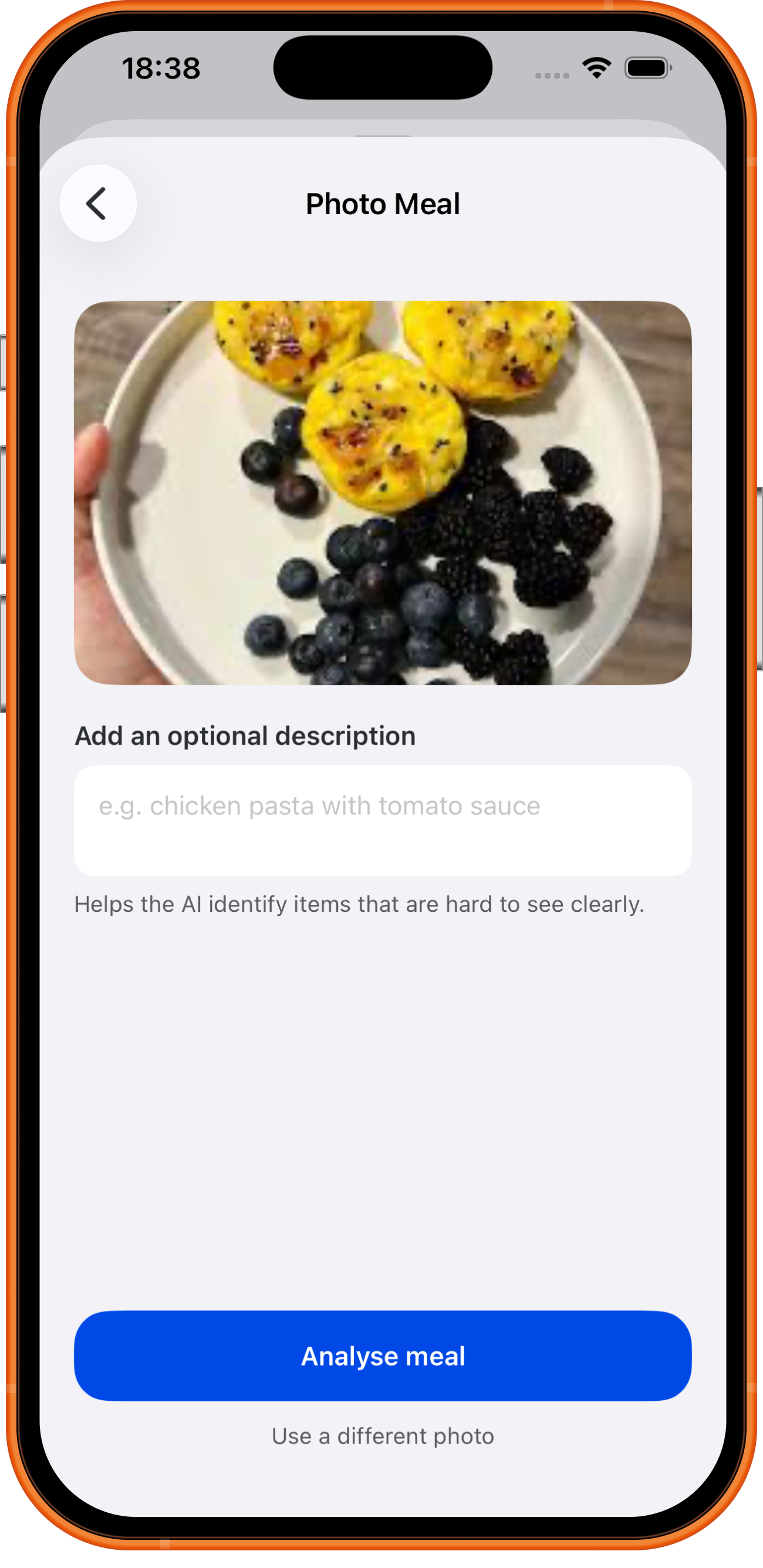
- Describe and log: type what you ate in plain language. M0VE breaks it into logged items with estimated macros.
- Recipes: browse the recipe library and tap to log. Every recipe scales to match your meal target.
You can mix and match. Log a recipe for your main and add a scanned snack on top.
How do I save a meal to log again quickly?
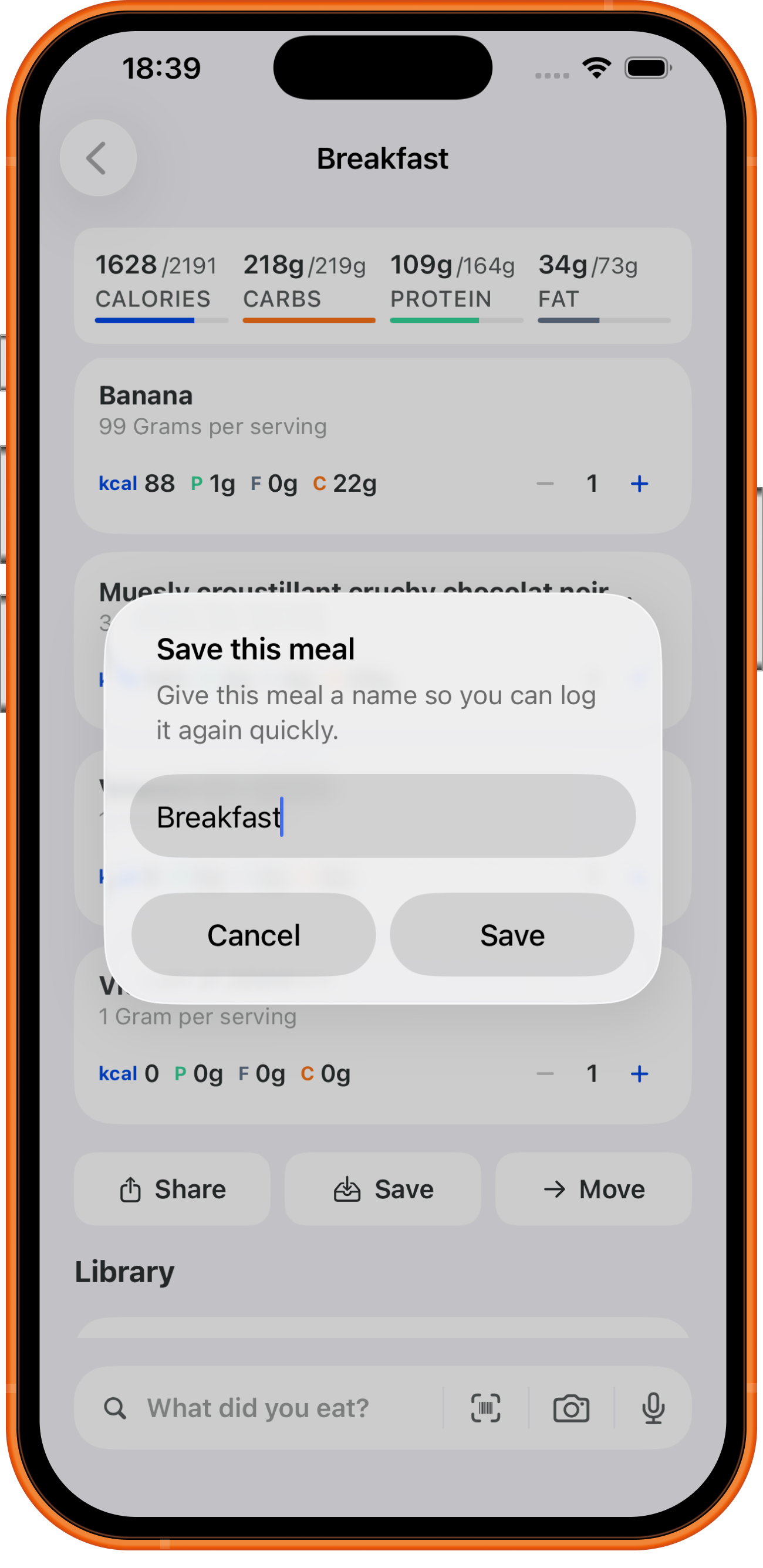
Once you have logged a meal you eat regularly, save it so you can re-log it in two taps next time.
- Log all the items in the meal slot as normal.
- Tap the three-dot menu in the top corner of the meal.
- Choose "Save meal" and give it a name.
Saved meals appear at the top of your food search so they are easy to find.
How do my daily targets work?
When you open M0VE each morning your calorie and macro targets are already set based on what is on your training plan for the day.
- Training days: carbohydrate targets increase to fuel your session and support recovery.
- Rest days: carbohydrate targets pull back. Protein stays consistent to support ongoing muscle repair.
- Per-meal targets: your daily total is split across breakfast, pre-workout, lunch and dinner.
What is the recovery window?
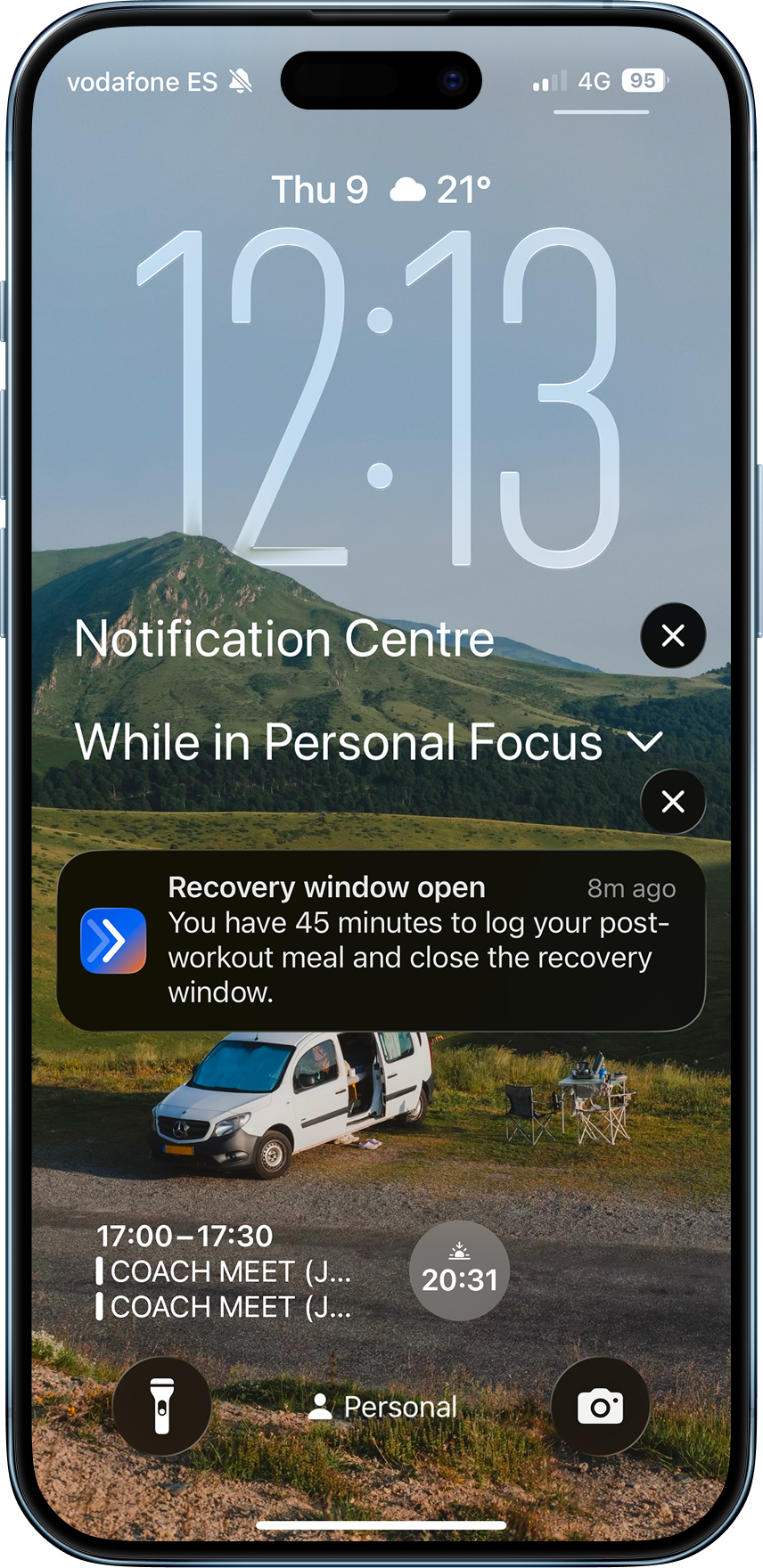
In the 45 minutes after a training session your body absorbs nutrients more effectively than at any other point in the day. M0VE opens the recovery window automatically when your session ends:
- Your macro targets for the window shift to a protein-forward split.
- A notification prompts you to log your recovery meal.
- The window counts down and closes after 45 minutes.
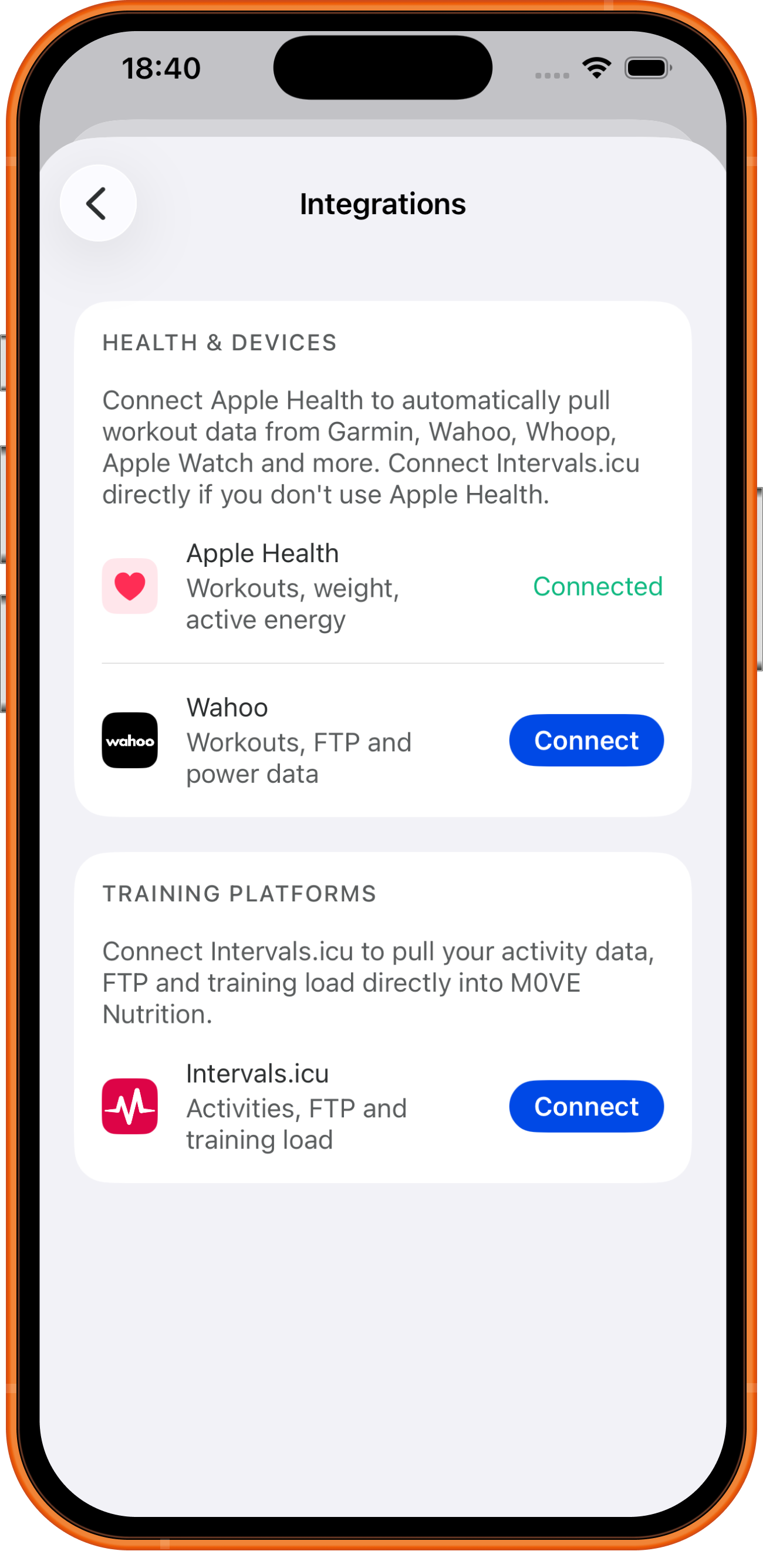
How do I connect my training devices?
Go to Connections in your account settings. Three ways to get your training data into M0VE:
- Apple Health (iOS): reads workouts from Garmin, Polar, TrainingPeaks and anything else that writes to Apple Health.
- Intervals.icu: direct connection for planned and completed sessions.
- Google Health (Android): same coverage as Apple Health on the Android side.
Step-by-step for every brand is in the docs.
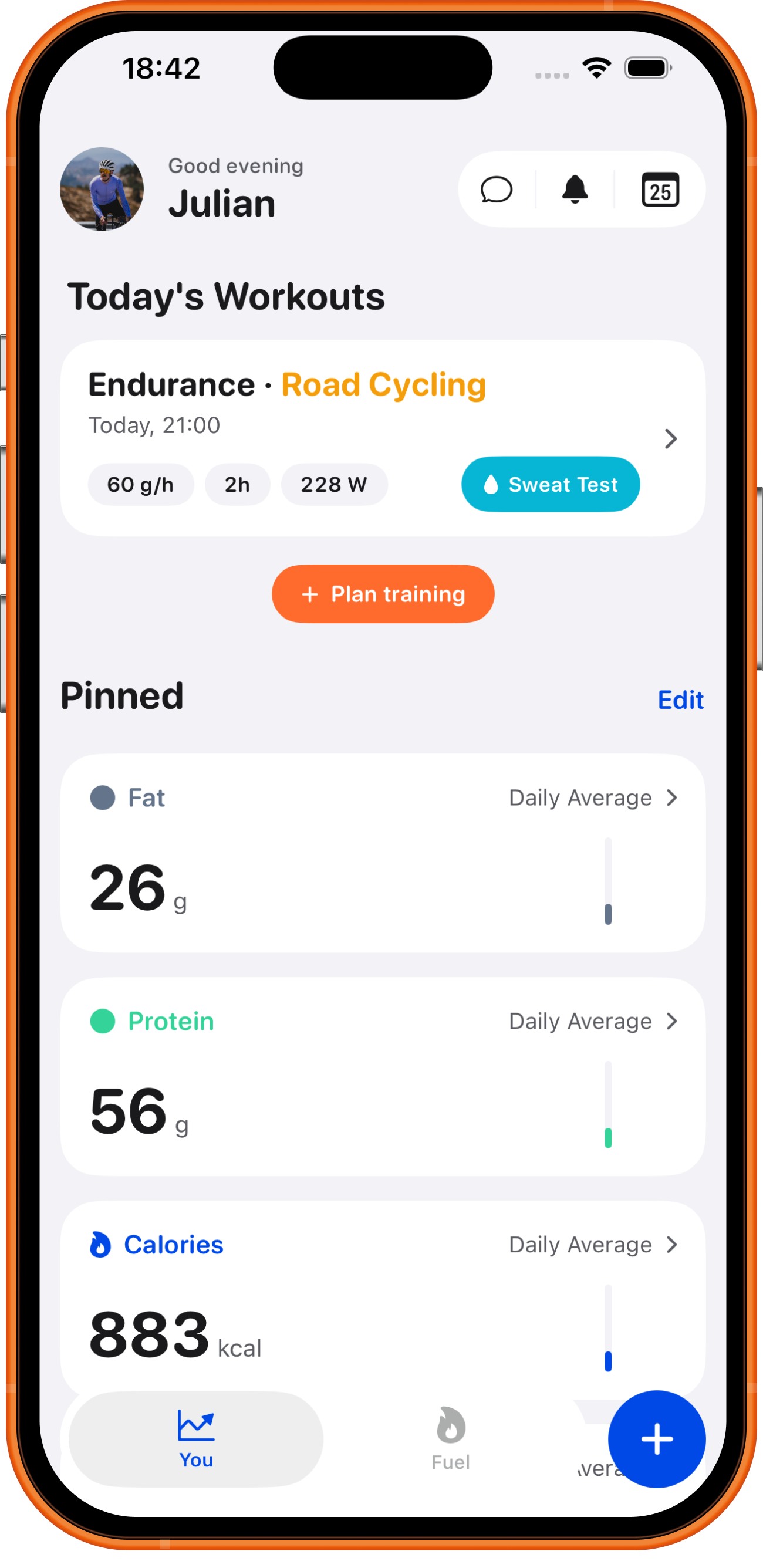
How do I track my sweat rate?
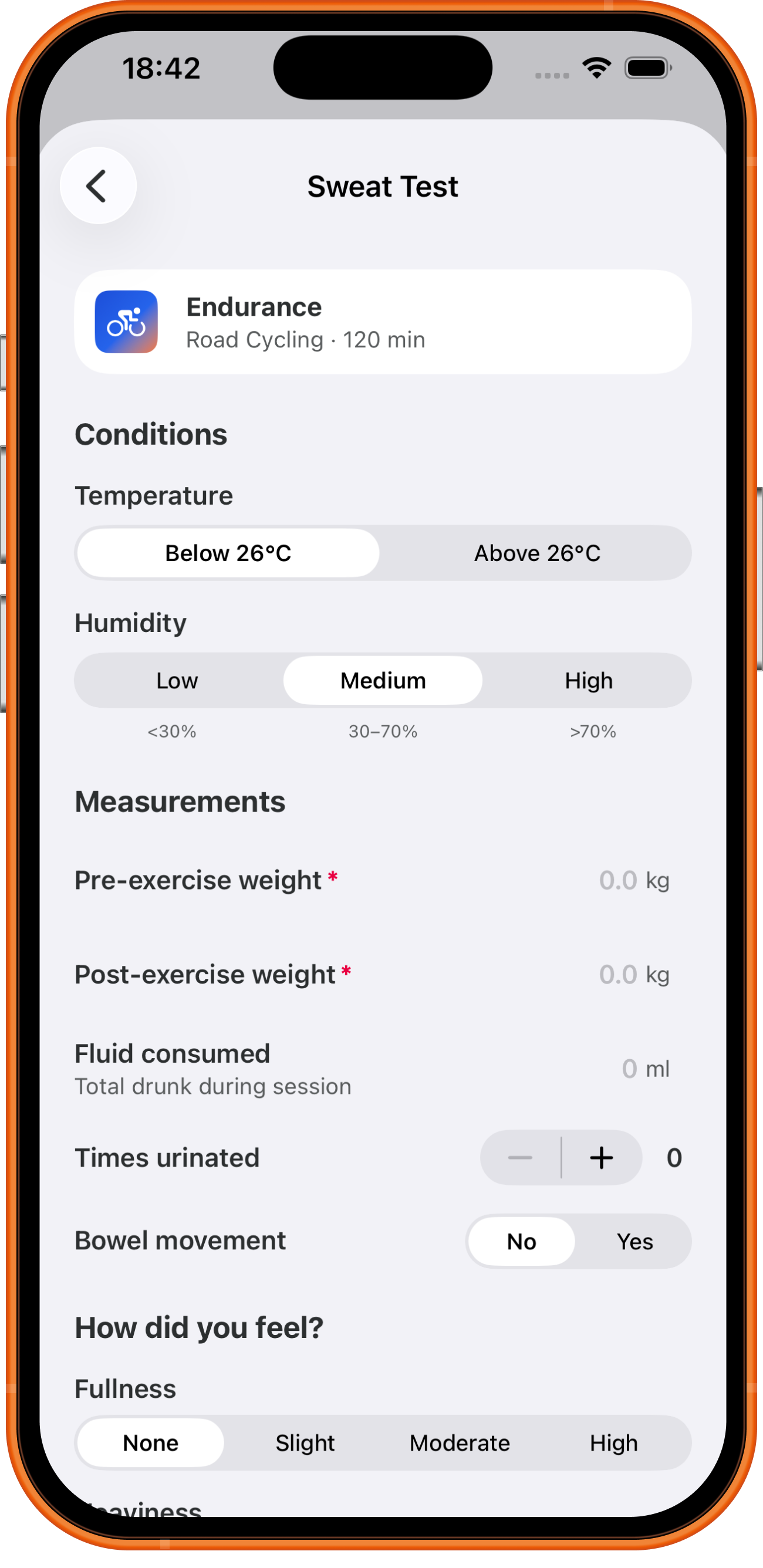
Your sweat rate tells M0VE how much fluid you need per hour of training. A single test gives you a personal target rather than a population average.
- Weigh yourself immediately before your session.
- Note the temperature and humidity.
- Record how much fluid you drank during the session.
- Weigh yourself again immediately after.
- Log the test in M0VE — your sweat rate is calculated automatically.
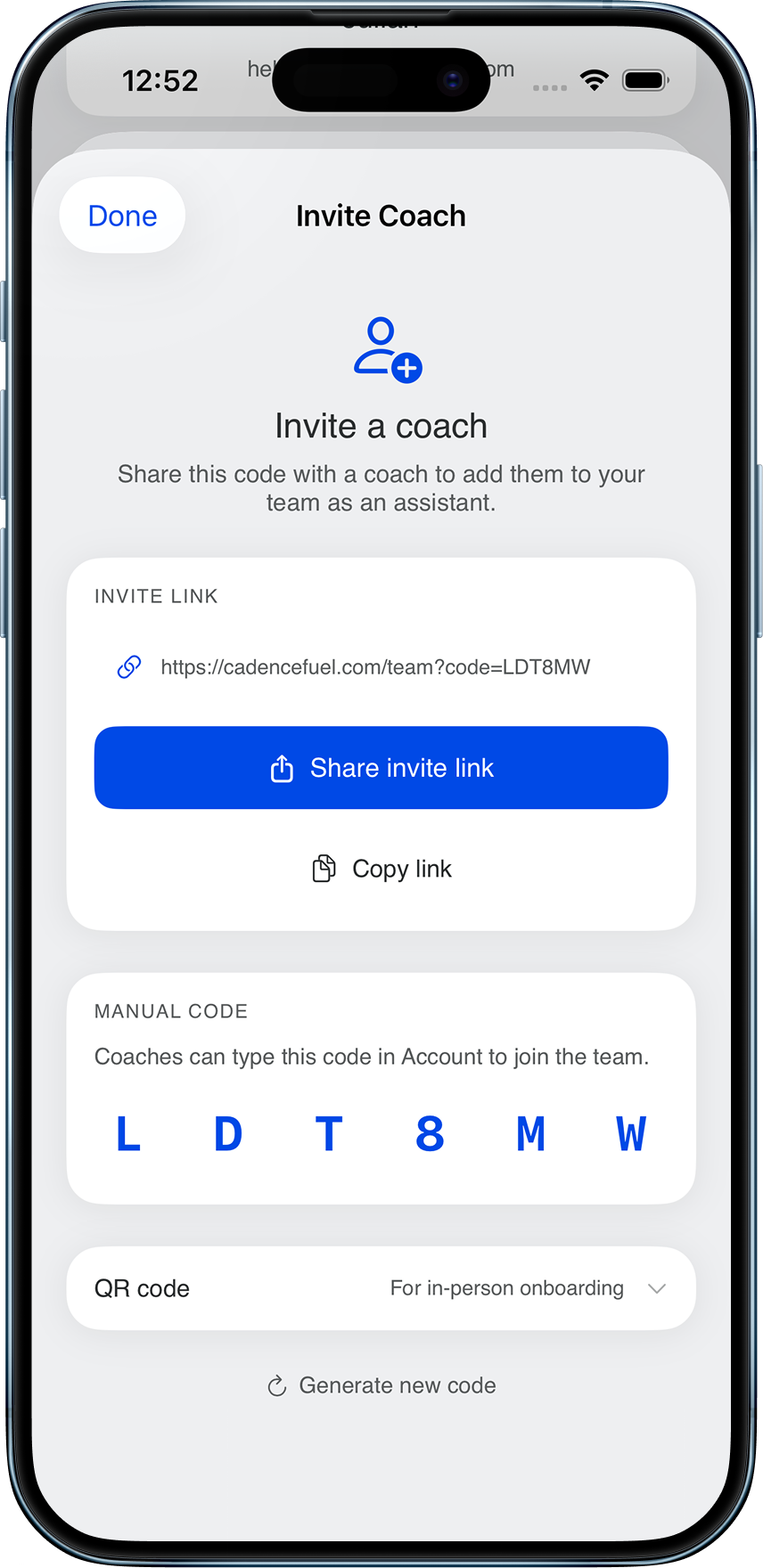
How do I share my nutrition with my coach?
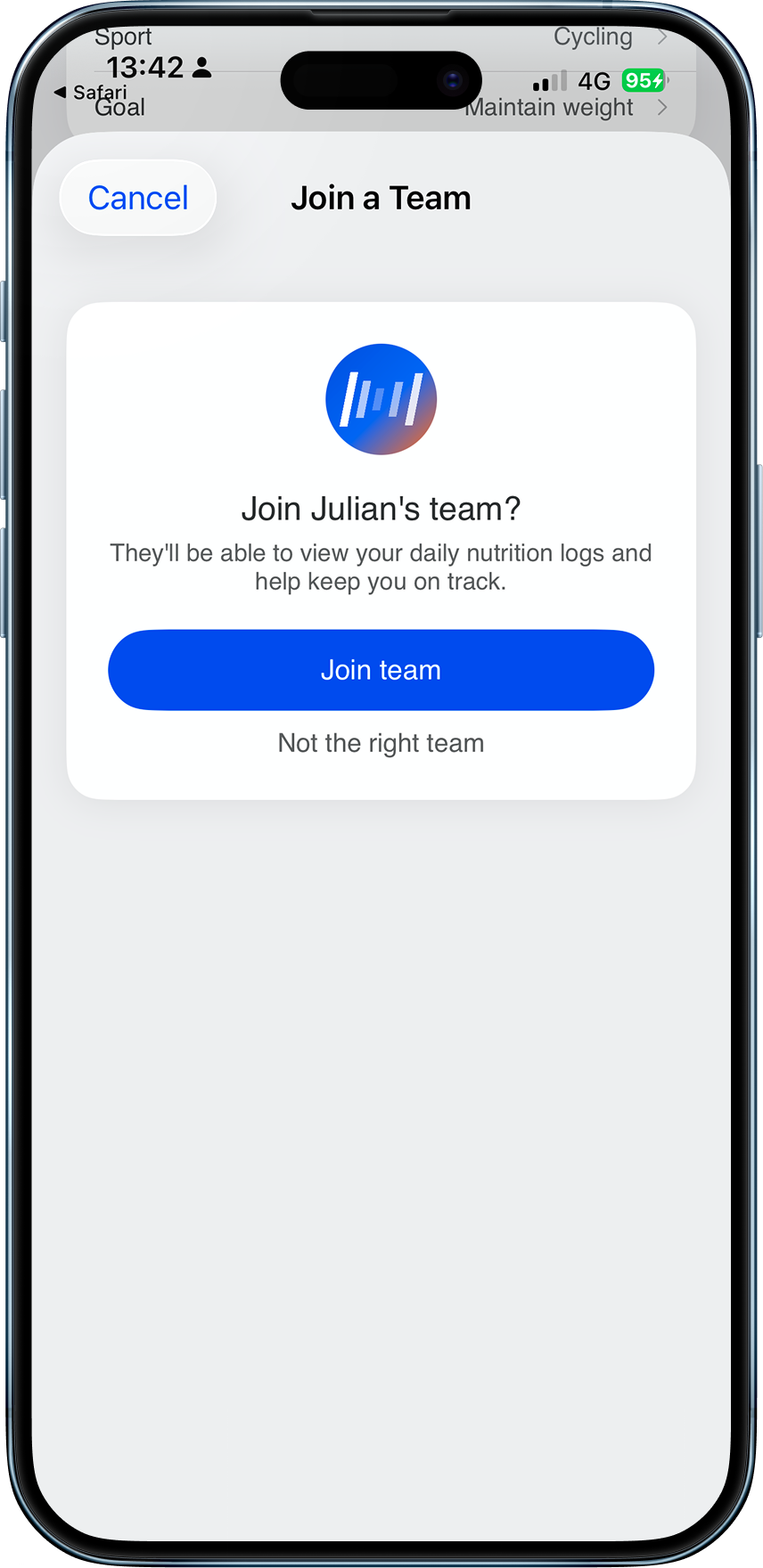
Open your account settings and tap "Connect a coach." Share your invite link or QR code and your coach can connect from their M0VE account.